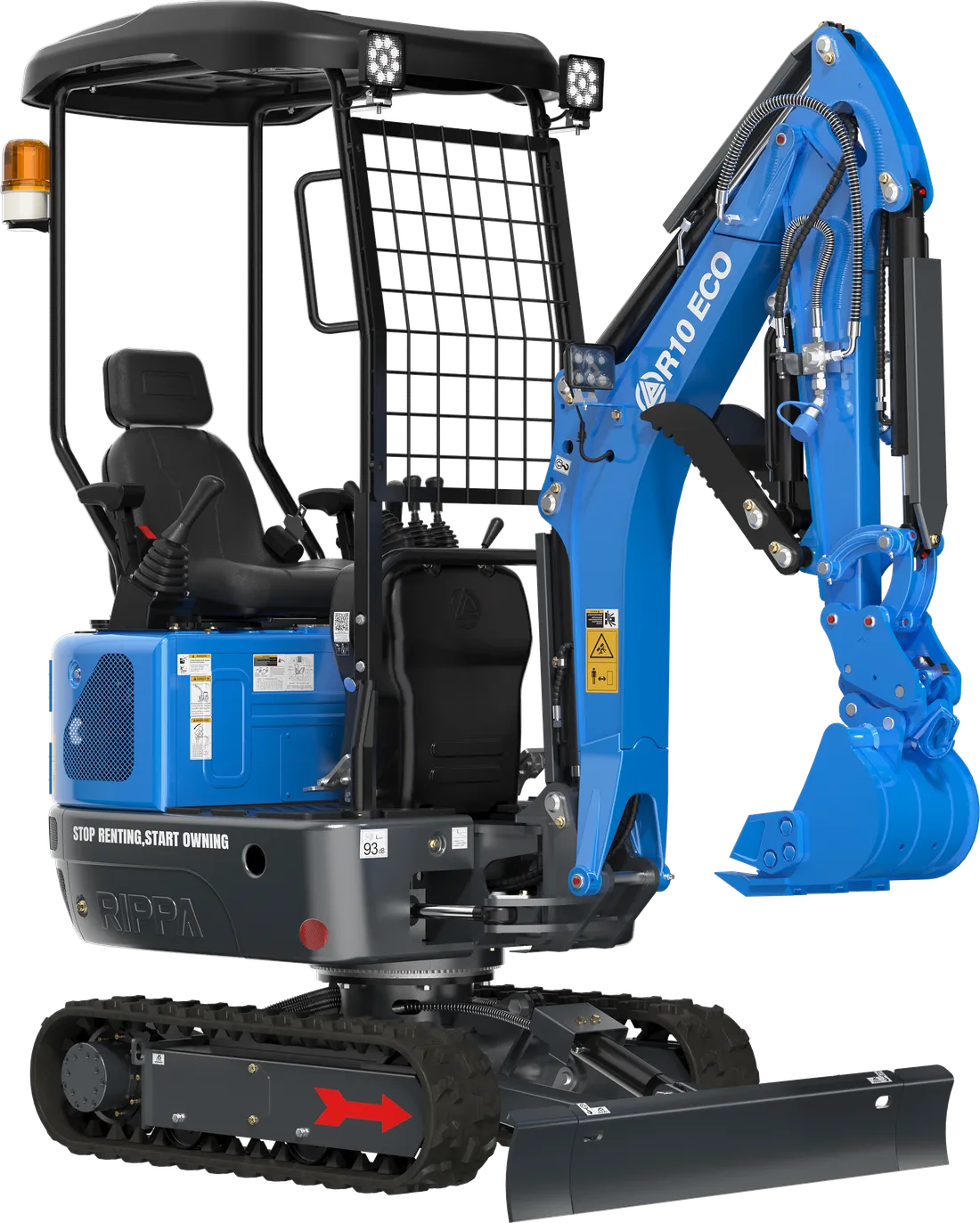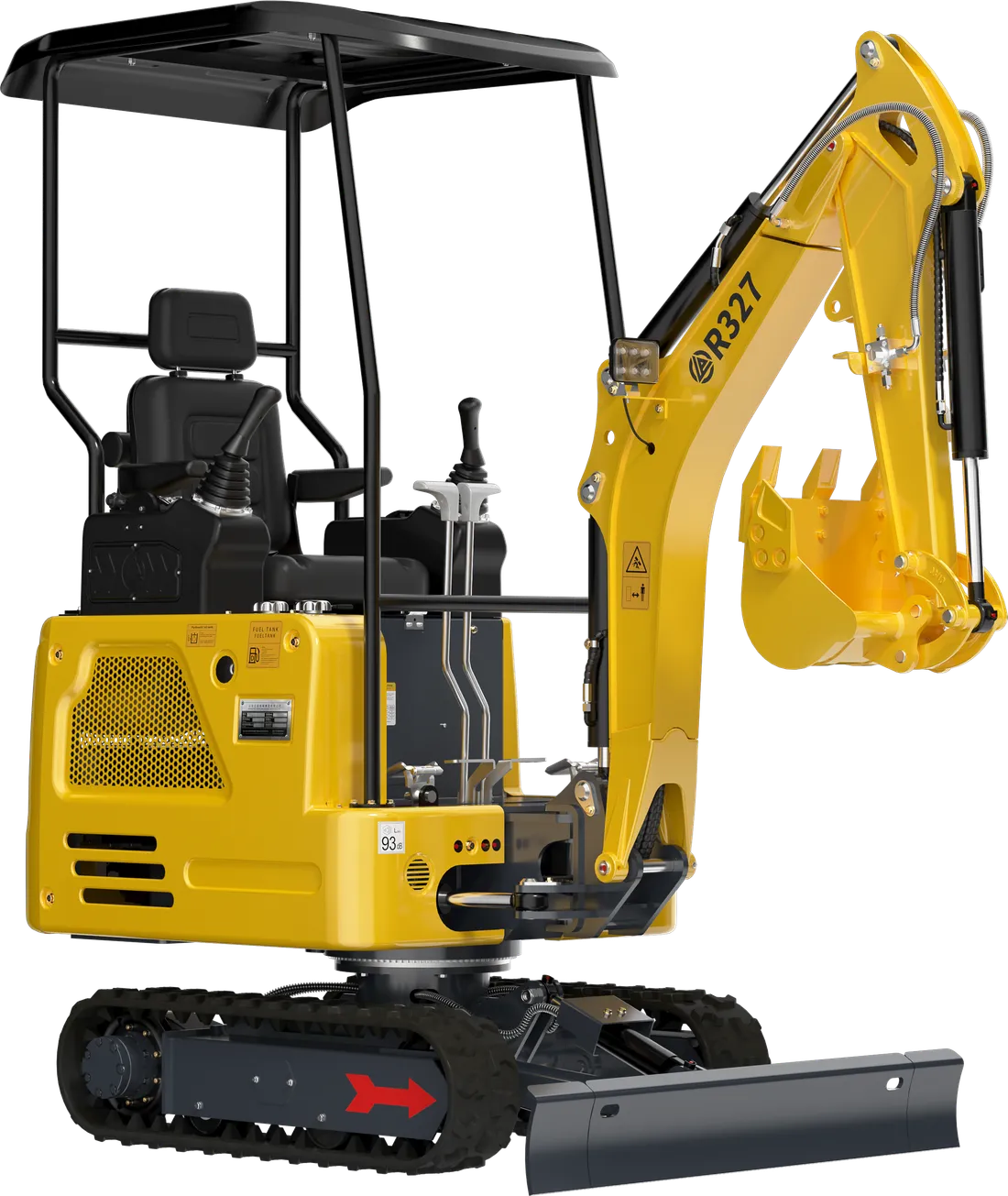
When a fault occurs, what wastes the most time is often not the fault itself but the back-and-forth of information: which machine, which serial number, at how many hours, is it under warranty, what exactly does the fault look like? On the phone, each of these questions takes minutes, and a single missing detail means a second and a third call.
That is why we have a service request form: it collects all the information and four mandatory images in one go, then forwards your request to our service team via WhatsApp. In this guide we go through the form field by field, show why each image is requested and how it should be taken, and give you a template you can use for the fault description.
Prepare before you open the form
Filling in the form takes a few minutes — if you have prepared. Before you start, complete these items:
- Put the machine in a safe position: level ground, equipment on the ground, engine off. If the machine needs to run to show the fault, read the safety notes below.
- Find the data plate and clean it.
- Turn on the ignition so the hour meter display can be read.
- Have the sales invoice, or a photo of it, to hand.
- Clean the faulty area; if there is a leak, make its location clear.
- Check your phone’s battery and internet connection.
- Note when and under what conditions the fault started.
If possible, fill in the form on your phone next to the machine rather than at a desk. That way you can take the photos directly from the form and fill in any missing detail on the spot by looking at the machine.
The form fields one by one
The form has seven text fields, four of which are mandatory. We recommend filling in the optional fields too, because each of them speeds up the diagnosis.
| Field | Mandatory? | How to fill it in |
|---|---|---|
| Full name | Yes | The name of the person the service team will contact: the machine’s owner or the person in charge on site |
| Phone | Yes | A number that uses WhatsApp and can be reached during the day |
| Machine model | Yes | For example Rippa R327, QD35 or RF20E |
| City | No | Adding the district makes it easier to identify your nearest service point |
| Serial number | Yes | Exactly as on the plate, character for character |
| Operating hours (engine hours) | No | The value on the instrument panel; a photo of the display is also mandatory |
| Fault description | No | When it started, when it happens, whether a warning light is on |
When writing the serial number, take care not to confuse characters such as O and 0, I and 1, and B and 8. If there is a character you are not sure of, don’t guess, since the photo of the plate will be in the form anyway; add a note to the description saying “part of the plate is unreadable”. If another operator uses the machine on site, add their name and phone number to the description as well; they are often the person who can describe the fault most accurately.
The four mandatory images and why they are requested
The most important part of the form is the four images. All of them are mandatory; if one is missing, the form won’t be sent and the missing box is highlighted. You can take the photos with your phone’s camera directly from the form.
1. Product label (data plate)
This is the plate showing the machine’s model and serial number. The plate is the machine’s identity; which parts are used and the machine’s records depend on this information. For a good shot, clean the plate, hold the phone parallel to it, shoot at a slight angle if there is glare, and make sure all the characters are legible.
2. Operating hours display
This is the engine or operating hours display on the instrument panel. The hours show the scheduled maintenance status and whether the machine is within the warranty period. For a good shot, turn on the ignition and photograph the display from an angle without reflections; all the digits must be clearly visible.
3. Product invoice
The sales invoice is requested to confirm warranty cover. For a good shot, place the invoice on a flat surface and photograph it without shadows, with all four corners in the frame; the date and product lines must be legible. If your invoice is digital, you can upload a screenshot.
4. Fault photo or video
This is a photo or video of the faulty area; the video can be at most 60 MB. For faults that show up as a noise, vibration or during a particular movement, a video gives far more information than a photo. For a good shot, first show where the area is on the machine with a wide shot, then the fault itself close up; for noisy faults, record the video with sound.
| Image | Common mistake | Do it right |
|---|---|---|
| Product label | Muddy, with glare or only half in frame | Cleaned, fully in frame, all characters legible |
| Operating hours display | Blank display photographed with the ignition off | Ignition on, digits clear |
| Product invoice | Corner cut off, blurred or shadowed | On a flat surface, all four corners visible |
| Fault image | Close-up only, location unclear | Wide shot first, then close-up |
If you need more than one fault image
The form has a single file field for the fault. Upload the most informative image or video here. If you want to send other photos too, you can add them to the same WhatsApp chat that opens after the form, once you have sent your message. That way all the information is gathered in one conversation.
The fault video: a shot that fits the limit and does the job
A good fault video doesn’t have to be long. These tips help you stay within the 60 MB limit and make the video useful:
- Keep the video short; the part that shows the fault can usually be covered in under a minute.
- If your phone records at a very high resolution, lower it in the camera settings; the file gets smaller and uploads faster.
- Show a general view of the machine for a few seconds at the start of the video, then the faulty area.
- For noisy faults, hold the phone at a safe distance from where the noise is coming from; keep wind and talking to a minimum.
- If the fault happens during a particular movement, film while that movement is being made.
Safety: If you need to film while the machine is running, have someone else operate it and stay at a safe distance. Keep away from rotating parts, belts and the fan, the movement area of the equipment and the space under the boom. Use a piece of cardboard, not your hand, to show a leak. Don’t try to film while you are operating the machine.
How to write the fault description
The description field is free text, but writing in a certain order speeds up the diagnosis. Answer these five questions:
- What is happening? Describe the symptom in one sentence.
- When did it start? Suddenly or gradually?
- When does it happen? When cold, when hot, under load, during a particular movement?
- Is there a warning light? Which one, and when did it come on?
- What have you tried? Things you have done, such as checking levels or replacing a fuse.
Example description: “Oil is dripping from the arm cylinder. It started three days ago and gets a little worse every day. It is more noticeable after the engine has warmed up, especially while digging. No warning light. I checked the hydraulic oil level and it is normal.”
For comparison: a description such as “Machine broken, urgent” gives the service team no clues and means the first call is spent asking these questions.
Put the most important information in the first sentence. When your request is turned into a WhatsApp message, the first part of the description is added to the message; having the main symptom in the first line means the service team understands the message on first reading. We explain how to observe symptoms in our fault symptoms guide.
After sending: the WhatsApp step
When you press the “Send service request” button, your details and images are uploaded. Depending on the file size and your connection this may take a little while; don’t close the page. When the upload is complete, the screen confirms that your request has been received and WhatsApp opens automatically.
In WhatsApp you will see a message ready to be sent to our technical service line, 0552 947 92 09. The message contains your name, phone number, machine model, serial number, city if you filled it in, operating hours and fault description, plus a link to the images you uploaded. All that is left for you to do is press send in WhatsApp.
- If WhatsApp didn’t open automatically, tap the “Send on WhatsApp” button that appears on the form page.
- You can check the files you uploaded with the “View the photos I uploaded” link.
- Don’t skip this last step: it is this message that gets your request and images to our service team.
Once your message arrives, our service team reviews your request and gets back to you on WhatsApp or by phone, asking for more information or images if needed. In the meantime, don’t push the machine and don’t try to dismantle the faulty area; especially on machines under warranty, it is best to plan any work together with the service team.
By submitting the form, you consent to the processing of your contact details and uploaded images for the purpose of assessing your request; the details are in the KVKK data protection notice below the form.
Common problems
- The form won’t send and a box is red: One of the four images is missing or a mandatory field is empty. Complete the highlighted field.
- The video won’t upload: The file may be over 60 MB. Shorten the video or record it again at a lower resolution.
- The upload is taking very long: If mobile data is weak, move to a spot with better reception or connect to Wi-Fi.
- The serial number can’t be read: Clean the plate and photograph it again; if it is still unreadable, say so in the description.
- You don’t have the invoice with you: The invoice image is mandatory. Photographing the invoice on delivery day and keeping it on your phone prevents this problem from the start; if you can’t get hold of the invoice, call our service line.
Emergencies and other routes
The form is the most orderly way to submit your request in full, but in some situations a phone call comes first:
- If the machine poses a safety risk — for example a fuel leak, a burning smell or loss of control — first stop the machine safely, then call our service line.
- If there is no internet on site, call the service line; we will take the details over the phone, and you can send the images once you have a connection.
Our technical service line is 0552 947 92 09; our hours are weekdays and Saturdays, 09:00–18:00. You can see our 14 authorised sales and service points in 12 provinces and our contracted service network in all 81 provinces on the dealer and service network page; our other contact channels are on the contact page.
Quick checklist
- Machine in a safe position.
- Full name, phone, machine model and serial number ready.
- Product label photo clean and legible.
- Operating hours photo: ignition on, digits clear.
- Invoice photo: all four corners visible.
- Fault image or video: wide shot first, then close-up; video under 60 MB.
- The main symptom is in the first sentence of the description.
- After sending the form, the WhatsApp message was sent too.
This preparation helps the service team understand the fault from the first message and, if needed, get the right part ready sooner. For identifying parts, see our guide to finding the right spare part; for what to watch during the warranty process, see our warranty guide.
You can open your request right away using the service request form, and if you have any questions, message our technical service line on WhatsApp. You can browse the parts you need on our spare parts page.